
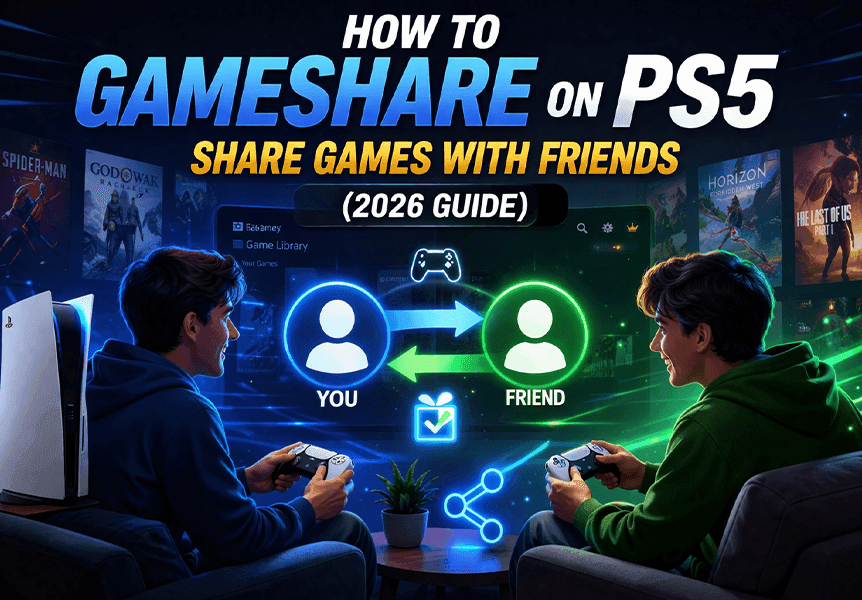
How to Gameshare on PS5: Complete Step-by-Step Guide (2026)
Want to share your PS5 game library with a friend or family member? PlayStation 5's Console Sharing and Offline Play feature lets two consoles access each other's purchased games — effectively letting you split the cost of every digital game you buy.
This comprehensive guide walks you through every step, explains the limitations, covers common issues with solutions, and answers every question you might have about PS5 game sharing in 2026.
Table of Contents
- What Is PS5 Game Sharing?
- Requirements
- Step-by-Step Setup Guide
- What Gets Shared (and What Doesn't)
- PS5 Gameshare Limitations
- Troubleshooting
- Is Gamesharing Safe?
- Gameshare vs. PS Plus Extra
- How Much Can You Save?
- FAQ
What Is PS5 Game Sharing?
Game sharing (officially called Console Sharing and Offline Play) is a built-in PS5 feature that allows two PlayStation 5 consoles to access each other's digital game libraries. When properly configured:
- Your friend can play your purchased games on their PS5
- You can play their purchased games on your PS5
- Both of you can play at the same time — even the same game, in different sessions
- PS Plus benefits are shared (online multiplayer, monthly games)
It works because each PSN account can designate one console as its "primary" console. Anyone who uses that primary console gets access to all digital content owned by that account — even when signed into a different user profile.
This is completely legitimate and officially supported by Sony — it's not a hack, exploit, or gray area. Sony designed this feature for households and trusted friends.
Before You Start: Requirements
Before setting up gamesharing, make sure you have everything ready:
Essential Requirements
- Two PS5 consoles (any model — Standard, Digital Edition, or PS5 Pro all work)
- Two PSN accounts (yours and your sharing partner's)
- Stable internet connection on both consoles
- Each other's PSN login credentials (email and password)
Important Considerations
- Only share with someone you fully trust. They will have the ability to log into your PSN account on their console. Choose a close friend, partner, or family member.
- Enable Two-Factor Authentication (2FA) on your account before sharing. Go to Settings > Users and Accounts > Security > 2-Step Verification and set it up. This protects your account even if someone has your password.
- Remove saved payment methods if you're uncomfortable. Go to Settings > Users and Accounts > Payment Methods and delete your credit card or PayPal before sharing login credentials.
Step-by-Step: How to Set Up PS5 Game Sharing
The process takes about 10 minutes total. You'll each need to sign into the other person's console.
Step 1: Sign Into Your Friend's PS5
- On your friend's PS5, navigate to Settings (gear icon, top right of home screen)
- Select Users and Accounts
- Choose Add User and select Create User
- Sign in with your PSN email and password
- Complete any 2FA verification if prompted
Step 2: Enable Console Sharing on Their Console
While still signed into your account on your friend's PS5:
- Go to Settings > Users and Accounts
- Select Other
- Choose Console Sharing and Offline Play
- Select Enable
What this does: This designates your friend's PS5 as the primary console for your account. This means everyone who uses that console can access your digital games — including your friend on their own account.
Step 3: Sign Out (Optional but Recommended)
After enabling Console Sharing, you can sign out of your account on their console. Your games will remain accessible to all users on that PS5 even after you sign out. However, many users leave the account active to make future purchases easier.
Step 4: Your Friend Repeats the Process on Your PS5
Now your friend does the same thing on your PS5:
- On your PS5, your friend signs into their PSN account
- Goes to Settings > Users and Accounts > Other
- Selects Console Sharing and Offline Play
- Selects Enable
This makes your PS5 the primary console for your friend's account, giving you access to all their digital games.
Step 5: Download and Play Each Other's Games
On your PS5:
- Go to the Game Library (the library icon on your home screen)
- Switch to your friend's account
- Browse their purchased games
- Download any game you want
- Switch back to your own account — the downloaded game will be playable on your profile
Your friend does the same on their PS5 with your game library.
That's it! You now have access to each other's entire digital game libraries.
What Gets Shared (and What Doesn't)
Understanding exactly what transfers between accounts helps avoid confusion:
What IS Shared
| Content | Details |
|---|---|
| Digital games | All games purchased from the PS Store |
| PS Plus Essential benefits | Online multiplayer access for all users on the primary console |
| PS Plus monthly games | Games claimed through PS Plus are accessible |
| Most DLC and add-ons | Season passes, expansion packs, and downloadable content |
| Pre-order bonuses | Digital pre-order content typically transfers |
What is NOT Shared
| Content | Why Not |
|---|---|
| Physical disc games | The disc must be physically in the console |
| Save data | Each player has their own save files (by design) |
| PS Plus Premium/Extra catalog | Streaming and catalog access is account-specific |
| In-game currency | V-Bucks, COD Points, etc., stay on the purchasing account |
| PlayStation Store wallet funds | Account balance cannot be shared |
| Some subscription services | EA Play, Ubisoft+, etc., are account-specific |
Limitations You Need to Know
PS5 gamesharing has specific restrictions that Sony enforces:
| Limitation | Details |
|---|---|
| One share partner only | Console Sharing can only be enabled on one PS5 per account at a time |
| Internet required on your console | Since your PS5 is no longer your primary, you need an active internet connection to verify game licenses every time you play |
| Same game, same account restriction | Two people cannot play the same purchased game on the same PSN account simultaneously — but both can play the same game on different accounts |
| PS Plus sharing is partial | Essential benefits (online play, monthly games) are shared. Premium/Extra catalog streaming is not |
| Region restrictions | Both accounts should ideally be from the same PSN region to avoid compatibility issues with DLC |
| Disabling removes access | If you disable Console Sharing on a console, that console immediately loses access to your games |
Important: Internet Dependency
After setting up gamesharing, your own PS5 requires an internet connection to play your own digital games. This is because your account's primary console is now your friend's PS5. Your console must verify your game licenses online.
If your internet goes down temporarily, you may get locked out of your own games until the connection is restored. This is the biggest trade-off of gamesharing.
Troubleshooting Common Issues
"This game can't be found" or Game Doesn't Appear
- Make sure the game was purchased digitally (disc games cannot be shared)
- Try restoring licenses: Settings > Users and Accounts > Other > Restore Licenses
- Restart the console after restoring licenses
- Verify the game isn't from a different PSN region
Games Lock After Internet Disconnects
This happens because your PS5 isn't set as the primary console for the account that owns the game. You need an active internet connection to verify licenses.
Fix: Reconnect to the internet and launch the game again. The license check is automatic.
"Console Sharing is Already Enabled on Another PS5"
You can only have Console Sharing enabled on one PS5 at a time. To fix this:
- On the old console, go to Settings > Users and Accounts > Other > Console Sharing and Offline Play > Disable
- Then enable it on the new console
Can't access the old console? You can deactivate all consoles from the web at PlayStation Account Management. Note: you can only do this remotely once every 6 months.
DLC Not Working on Shared Games
DLC sharing can be inconsistent. Try these steps:
- Download the DLC directly from the PS Store while signed into the account that purchased it
- Restore licenses on both consoles
- Make sure both the game and DLC are from the same PSN region
Two People Can't Play the Same Game
Remember: both players can play the same game at the same time, but they must be on different PSN accounts. If you're both trying to play on the same account, one person will get kicked.
Is PS5 Game Sharing Safe?
Yes — Console Sharing is an official Sony feature, not a workaround or exploit. Sony designed it for families and trusted friends who share a household or want to share their libraries.
However, follow these security best practices:
- Only share with people you trust completely — family members or close friends only
- Enable Two-Factor Authentication (2FA) — This prevents unauthorized access even if someone has your password
- Remove saved payment methods — Go to Settings > Payment Methods and delete credit cards before sharing credentials
- Never share with strangers online — This is the fastest way to get your account compromised
- Monitor your account activity — Check purchase history regularly at the PlayStation website
Can Sony Ban You for Gamesharing?
No. Sony does not ban accounts for using Console Sharing and Offline Play as intended. It's a built-in feature designed for exactly this purpose. However, selling access to your account or sharing with large numbers of people through workarounds could trigger Sony's fraud detection.
Gameshare vs. PS Plus Extra: Which Saves More Money?
Many players wonder whether gamesharing or upgrading to PS Plus Extra/Premium is the better value. Here's a comparison:
| Feature | Gamesharing | PS Plus Extra ($99.99/year) |
|---|---|---|
| Access to friend's games | Yes — their entire purchased library | No |
| Game catalog | Only games your friend has purchased | 400+ games in the catalog |
| New releases | If your friend buys them, you get them too | Major releases are rarely added at launch |
| Cost | Free (you split game costs informally) | $99.99/year per person |
| Flexibility | Limited to one sharing partner | Available on your account only |
| Classics catalog | Only if friend owns them | Included with Premium ($159.99/year) |
Our recommendation: The best value is actually combining both. Set up gamesharing with a friend AND have one of you subscribe to PS Plus Extra. Both accounts will benefit from the shared purchases, and the Extra catalog provides a massive library of additional games.
How Much Money Can You Save with Gamesharing?
Let's do the math. If you and a friend each buy 10 new games per year at $69.99:
- Without gamesharing: Each person spends $699.90/year → Combined: $1,399.80
- With gamesharing: You coordinate purchases and each buy 5 games → Each person spends $349.95 → Combined: $699.90
That's a saving of $699.90 per year between two people — or $349.95 each. Over a console generation (6-7 years), that's roughly $2,100 saved per person.
Even if you only share a few games per year, the savings add up quickly. One $69.99 game shared is essentially $35 each.
Tips for Effective Gamesharing
- Coordinate purchases — Decide who buys which game to avoid duplicates
- Buy digital-only — Physical disc games can't be shared; go all-digital for maximum benefit
- Use a shared list — Keep a Google Doc or note of who's buying what
- Take advantage of sales — When one person sees a PSN sale, they can buy for both of you
- Share PS Plus too — Only one person needs PS Plus for both to get online multiplayer
FAQ
Can I gameshare with more than one person? No. Console Sharing can only be enabled on one PS5 per account. If you enable it on a new console, it automatically disables on the previous one. You're limited to one sharing partner at a time.
Does gamesharing work between PS5 and PS4? Yes. The concept works between PS4 and PS5 using the same Console Sharing system. On PS4, it's called "Primary PS4" instead. If a game has both PS4 and PS5 versions, each console will access the appropriate version.
Will I get banned for game sharing? No. Console Sharing is an official PlayStation feature designed for households and trusted friends. Sony does not ban accounts for using it as intended. Only account selling or mass sharing could cause issues.
Can we play online together with one copy of a game? Yes! This is one of the biggest benefits. If one person buys a game digitally, both players can play online together — even in the same multiplayer match — through gamesharing. This works for games like free PS5 titles and paid games alike.
Does gamesharing work on PS5 Pro? Yes, Console Sharing and Offline Play works identically on PS5, PS5 Digital Edition, and PS5 Pro. The process is exactly the same.
Can I gameshare PS VR2 games? Yes. PS VR2 games purchased digitally can be shared through Console Sharing, just like any other digital game.
What happens if I change my PSN password? Your friend will need the new password to sign into your account on their console if they need to re-authenticate. However, the Console Sharing setting remains active — they won't lose access to your games unless they need to sign in again.
Can I gameshare with someone in a different country? Technically yes, but it's not recommended. DLC and add-ons are often region-locked, meaning DLC purchased on a US account might not work with a game from an EU account. Stick to the same PSN region for the best experience.
Does gamesharing affect my trophies? No. Each player earns trophies on their own account. Your trophy progress is completely independent from your sharing partner.
Can I stop gamesharing at any time? Yes. Simply go to Settings > Users and Accounts > Other > Console Sharing and Offline Play > Disable on the console you want to remove. This immediately revokes game access on that console.
Want to discover the best games to share with a friend? Check out our best free PS5 games or our best couch co-op games guide. For upcoming releases worth sharing, visit our game release calendar. And don't miss Webnetic's own games — free casual games you can play right in your browser!
Related Guides
- Best Couch Co-Op Games on PS5 — Games to play together locally
- How to Cancel PlayStation Plus — Manage your PS Plus subscription
- Best Free PS5 Games — Free games to gameshare with friends
- PS5 vs PS5 Pro — Upgrade guide for shared accounts
Disclosure: Webnetic s. r. o. is a game publisher. Some articles on this blog may reference or recommend games published by Webnetic. We strive to provide honest, useful content regardless of publisher affiliation.